Single Sign-On (SSO) Frequently Asked Questions (FAQs)
This topic describes some of the commonly asked questions and answers relating to setting up Single Sign-On (SSO) for the Megaport Portal.
For more information about the SSO setup process, see Setting up Single Sign-On.
Why am I seeing a message about SSO migration?
Megaport is upgrading its SSO infrastructure. If you are a Company Admin and your company has SSO configured, you might see a banner prompting you to update your identity provider (IdP) with new SAML integration details.
This migration is required to maintain uninterrupted SSO access for your users. To complete the update, you must configure the new Audience URI and IdP Response URL values in your IdP using the details provided in the Megaport Portal.
Warning
You must migrate your SSO configuration before April 22 2026. After April 22 2026, the previous SSO configurations will not work. However, if you have not completed the migration by this date, Company Admins can still log in using username and password to perform the migration. For more information, see How do I migrate after the deadline?.
How do I perform the SSO migration?
The SSO migration process involves updating your IdP with new SAML integration details provided by Megaport. This update is necessary to ensure that your users can continue to log in using SSO without interruption.
Note
You must update your identity provider before you begin the migration, otherwise SSO login for your company will be interrupted. Company Admins can still log in using username and password if SSO access is lost.
To perform the SSO migration
-
Go to the Megaport Portal, then go to User Menu > Admin Settings > Security Settings. You will see a message about SSO migration.
-
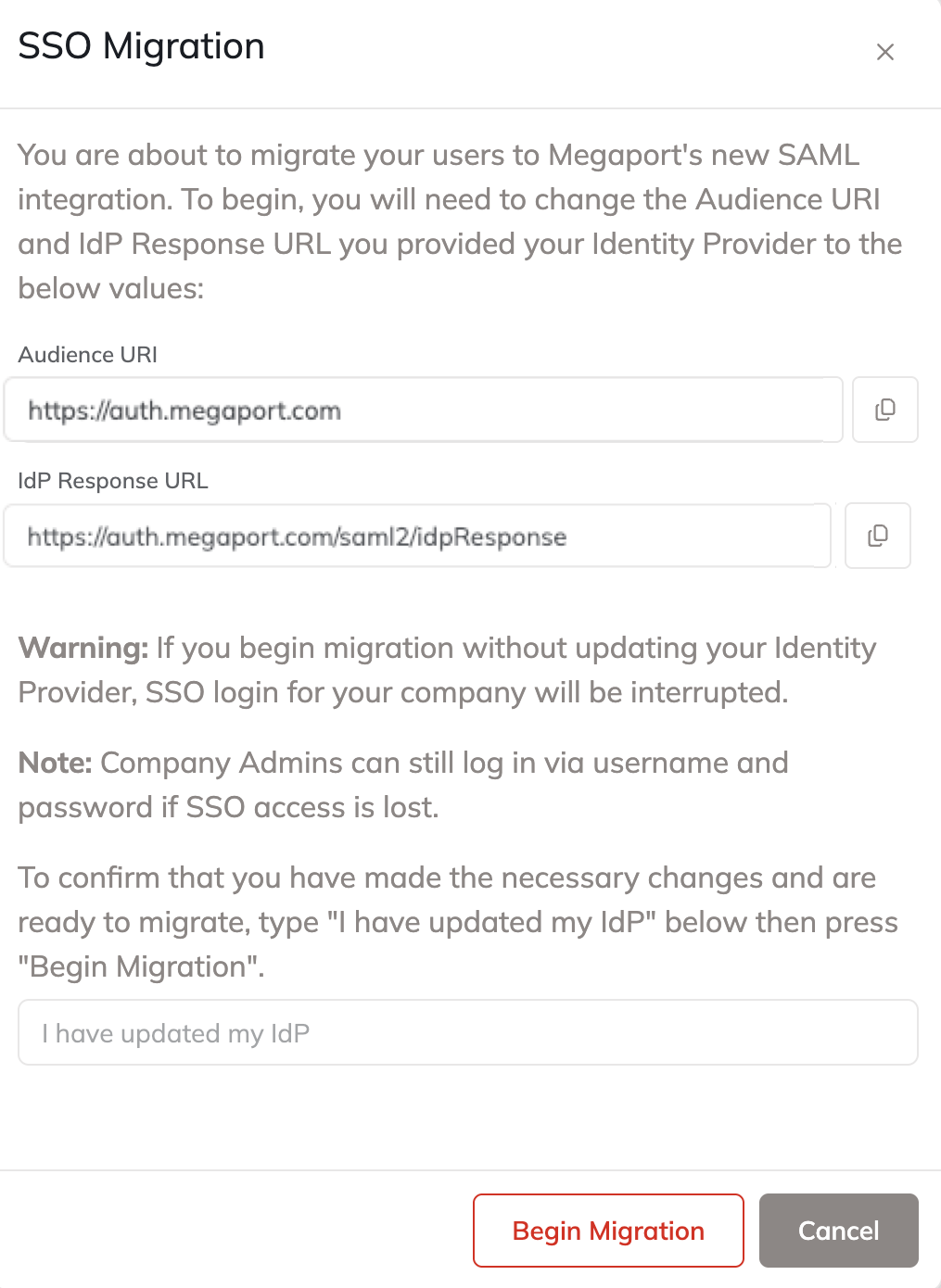
Click View New Details to see the new SAML details.
Note the new Audience URI and IdP Response URL values displayed on the SSO migration page.Important
Make a note of your old Audience URI and IdP Response URL values in case you have to roll back the migration.
-
Go to your IdP configuration site and enter the new Audience URI and IdP Response URL values.
-
After updating your IdP, return to the SSO Migration page and type I have updated my IdP to confirm, then click Begin Migration.
I have a Test button in my IdP. Should I use it to test the new SSO configuration?
If your IdP, such as Azure AD or Okta, has a Test or Test this connection button, it might return an error during the setup phase. This is expected.
The test will fail because the new configuration becomes active only after you click Begin Migration within the Megaport Portal.
Proceed with the update despite any test failure messages in your IdP dashboard.
How do I migrate after the deadline?
If you miss the migration deadline of April 22 2026, Company Admins can still perform the migration by logging in with their Megaport username and password. You will have to add the new Audience URI and IdP Response URL values to your IdP configuration.
Add the following values to your IdP configuration:
-
Audience URI:
https://auth.megaport.com -
IdP Response URL:
https://auth.megaport.com/saml2/idpResponse
I have a whitelist/allowlist set up. Do I need to update it?
If your organization restricts inbound network traffic to specific IP addresses, you might need to add Megaport’s IP ranges to your firewall or security group settings.
These IP ranges are available on request. For more information, contact our Support team.
I completed the SSO migration but users are having trouble logging in. What can I do?
If you are experiencing issues with SSO login after completing the migration, you can temporarily roll back to the previous SAML integration.
Note
The rollback option is intended as a temporary measure. If you continue to experience issues with SSO migration, contact support for assistance.
To roll back the migration
-
Go to the Megaport Portal and log in as a Company Admin using username and password.
-
Go to User Menu > Admin Settings > Security Settings.
-
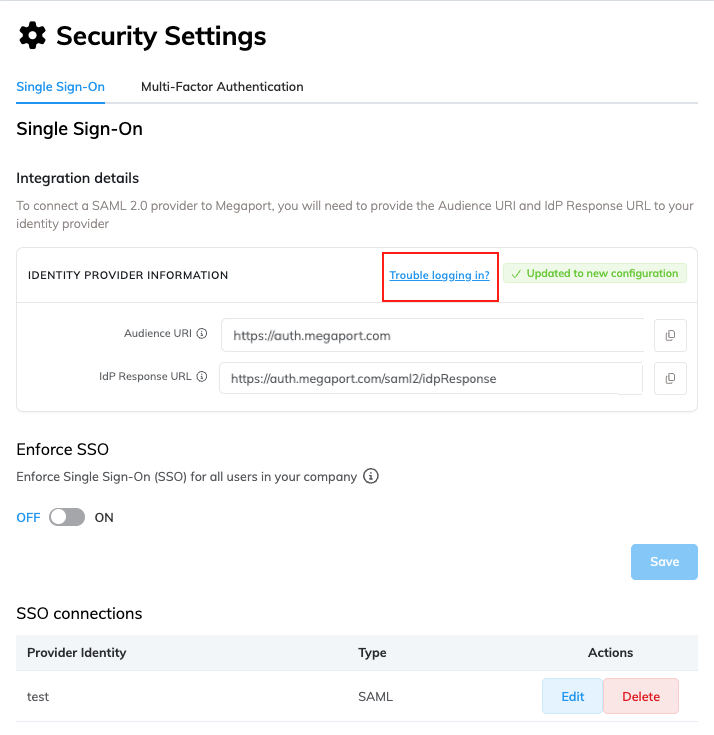
Click Trouble logging in? to access the rollback option.
-
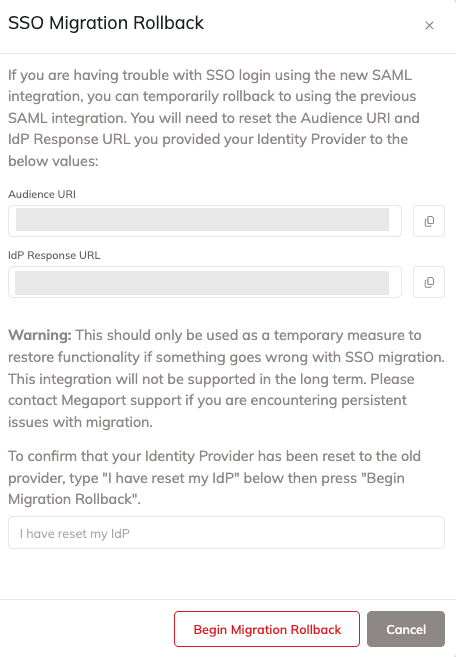
Copy the previous Audience URI and IdP Response URL values from this page. Use them to update your identity provider configuration to restore the original pre-migration values.
-
Type I have reset my IdP to confirm, then click Begin Migration Rollback.
I have set up SSO between Azure AD and Megaport. Why am I now receiving a Login Failed error when trying to log in?
Although this can be caused by several reasons, the most common reason is the email mapping attribute with Megaport not being set to Azure’s fully qualified email attribute value. Azure expects this, and if using just “emailaddress” then the integration will fail. To confirm if this is the cause, you can look at the browser console when logging in, and if you see an error containing “mapped email is empty” then this will be the cause.
I have set up an IdP-initiated flow with my IdP to connect to Megaport and it’s not working. Why?
Megaport uses internal software to support SSO, which does not support IdP-initiated flows at this stage. Trying to use an IdP-initiated flow will result in a relayState error. Once SSO has been configured for your Megaport account, you need to log in to Megaport directly via the Megaport Portal login page at https://portal.megaport.com/login.
Why do I receive a relayState error when testing my SSO configuration directly through my IdP?
Some IdPs offer the ability to test the SSO connection through their SSO configuration page. This test typically triggers an IdP-initiated flow which is not supported by Megaport. To test whether SSO has been set up correctly with Megaport, we recommend trying to log in directly via https://portal.megaport.com/login once you have completed the configuration with your IdP.
I’ve been invited by my Company Admin to our Company account with SSO and have never logged in directly with Megaport credentials. There are issues logging in via SSO. How can I get into my Company’s account?
If you have the role of Company Admin, or SSO hasn’t been enforced for your company account, then you can log in with a Megaport username and password. As you have never created a Megaport password with your profile, you will need to create one now. Go to the Megaport login page at https://portal.megaport.com/login, then click Get help signing in. When on the Login Help page, click Forgot Password and follow the prompts. Once you have set a password, you can use it to log in. You can use the Get help signing in option again if needed.