Creating an MVE Integrated with VMware
This topic describes how to create and configure a Megaport Virtual Edge (MVE) with VMware SD-WAN. Once you have a Megaport account, you use the VMware centralized management console called Orchestrator. In Orchestrator you create and configure the profile and edge device. In the Megaport Portal, you create, administer, maintain, monitor, and terminate MVE.
Before you begin, you need to create a Megaport account:
- New Megaport customers – Log in to the Megaport Portal, create your account, and proceed to your VMware SD-WAN Orchestrator account. For more information about setting up a Megaport account, see Creating an Account.
- Existing Megaport customers – Proceed to Creating a VMware edge profile and device to start creating a new MVE.
Tip
VMware provides documentation for their SD-WAN product at VMware SD-WAN Documentation.
Licensing
Before you create an MVE in the Megaport Portal, you need a valid license from VMware. For more information about obtaining a VMware license, see Edge Licensing or ask your VMware Sales Associate or Reseller.
Basic steps
This section provides an overview of the configuration steps in VMware Orchestrator and the Megaport Portal.
The basic steps are:
- Create a VMware edge device profile and edge device in Orchestrator.
- Configure the VMware edge device and apply the profile to the device.
- Generate an SSH public key.
- Create an MVE instance in the Megaport Portal.
Creating a VMware Virtual Edge profile and device
To get started, you create a default profile so that when the edge device registers to Orchestrator, it retrieves its base configuration, connects to Orchestrator, and enables some specific firewall rules. After that you can manage the MVE device through Orchestrator.
To create an edge profile in Orchestrator
-
Log in to the VMware SD-WAN Orchestrator.
-
Click the link for the Customer profile account.
-
Choose Configure > Profiles.
-
Click New Profile.
-
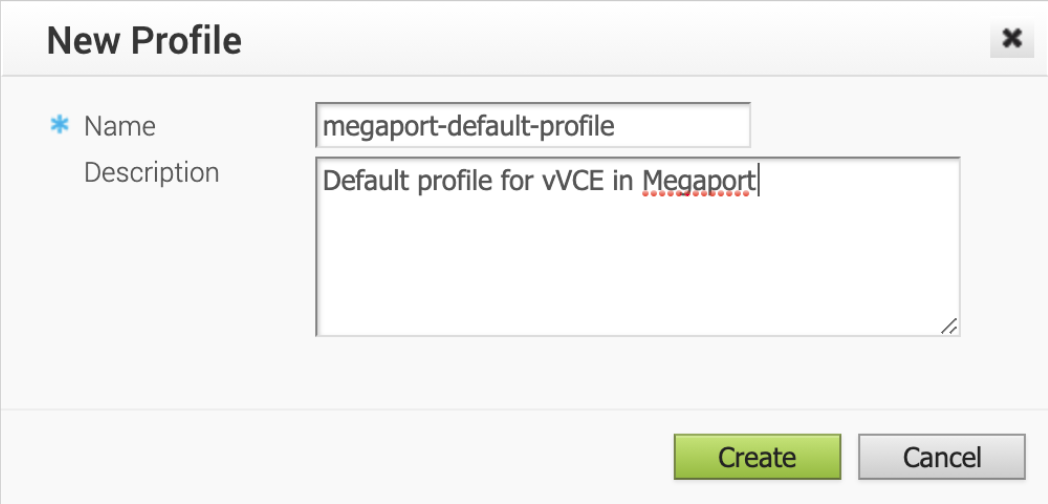
Enter a Profile Name and an optional Description.
For example, megaport-default-profile.
-
Click Create.
To create a virtual edge device in Orchestrator
-
Select the Device tab.
-
Select Global Segment from the Configure Segment drop-down.
-
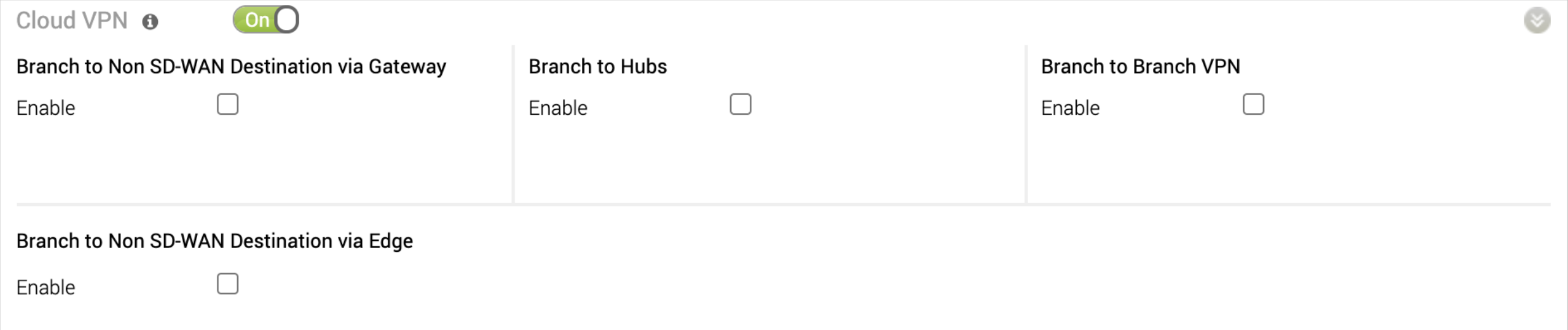
Enable Cloud VPN.
-
Unselect all device types, except for Virtual Edge.
-
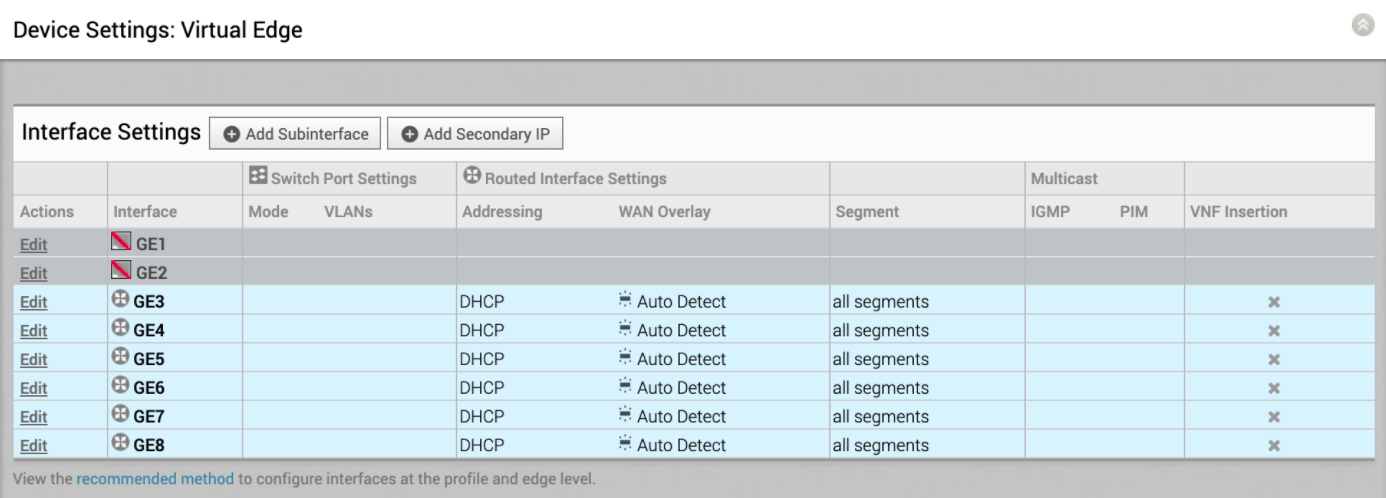
Under Device Settings: Virtual Edge, click Edit next to GE1 and GE2 and disable those interfaces sequentially.
-
Ensure that GE3 is enabled.
GE3 becomes the first available routed interface. Other ports do not require to be disabled and can be left in their current state.
-
Configure the following options for the GE3 interface:
- Interface Enabled – Select this option.
- Capability – Choose Routed from the drop-down list.
- Addressing Type – Choose DHCP from the drop-down list.
- WAN Overlay – Enable this option and choose Auto-Detect Overlay from the drop-down list.
- All other interfaces – Leave the default values.
-
Click Update GE3.
-
Under Wi-Fi Radio, ensure that Radio Enabled is unselected (there are no wireless interfaces).
-
Click Save Changes in the upper-right corner.
-
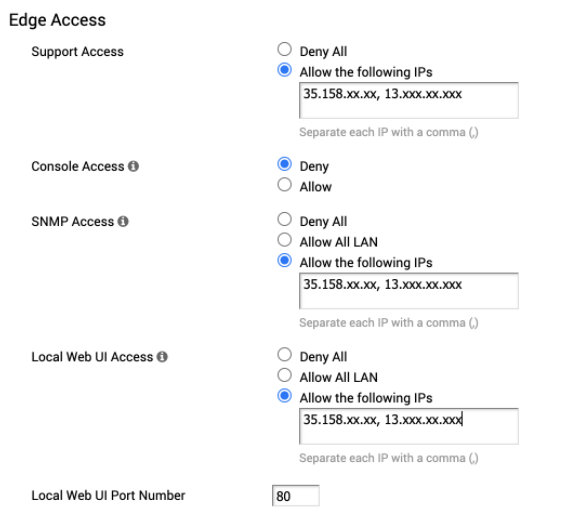
Select the Firewall tab and enter comma-separated IP values for any customer-side management IPs that require access to the edge device.
-
Ensure that the Firewall Status option is set to On.
-
Next to Support Access, enter the trusted IP addresses that are allowed access to the device.
-
Next to SNMP Access, you can optionally allow SNMP access to the WAN public interface. Enter the trusted IP addresses to allow.
-
Next to Local Web UI Access, enter the trusted IP addresses to allow access to the WAN interface. This is important because you are configuring a VMware Virtual Edge device with no LAN ports and no console.
-
Accept 80 as the Local Web UI Port Number or change it to match your environment.
-
Click Save Changes in the upper-right corner.
The next step is to configure and assign the profile to the edge device.
Configuring the VMware edge device
After creating the profile, you will configure the edge device to get it connected to the internet.
To configure a VMware edge device in Orchestrator
-
In Orchestrator, click the link for the Customer profile account.
-
Choose Configure > Edges.
-
In the upper-right corner, click New Edge….
-
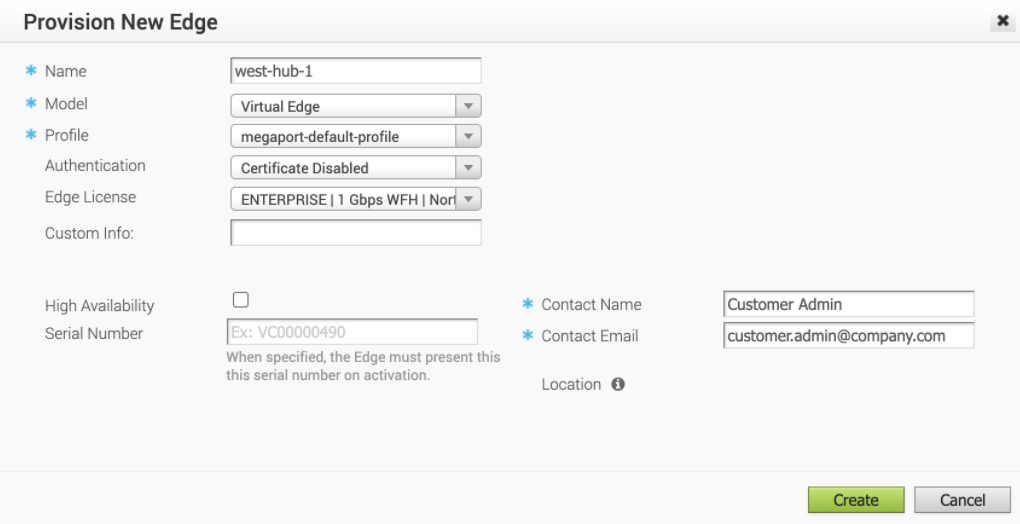
Populate the fields as required for your network.
- Name – Enter a name for the edge device.
- Model – Choose Virtual Edge from the drop-down list.
- Profile – Select the recently created profile to assign to the new edge device.
- Authentication – Choose an authentication option for the edge device.
For more information about the authentication options, see the VMware SD-WAN documentation. - Edge License – Choose the license to apply to this edge device. The list displays the licenses assigned to your enterprise. Licenses are grouped by the edge device throughput limit (1 Gbps or 10 Gbps), region, and length of contract. For more information about obtaining a VMware license, see Edge Licensing or ask your VMware Sales Associate or Reseller.
- Custom Info (optional) – Enter a description for the edge device.
- Contact Name and Contact Email – Enter a contact name and email address for this device.
-
Click Create.
-
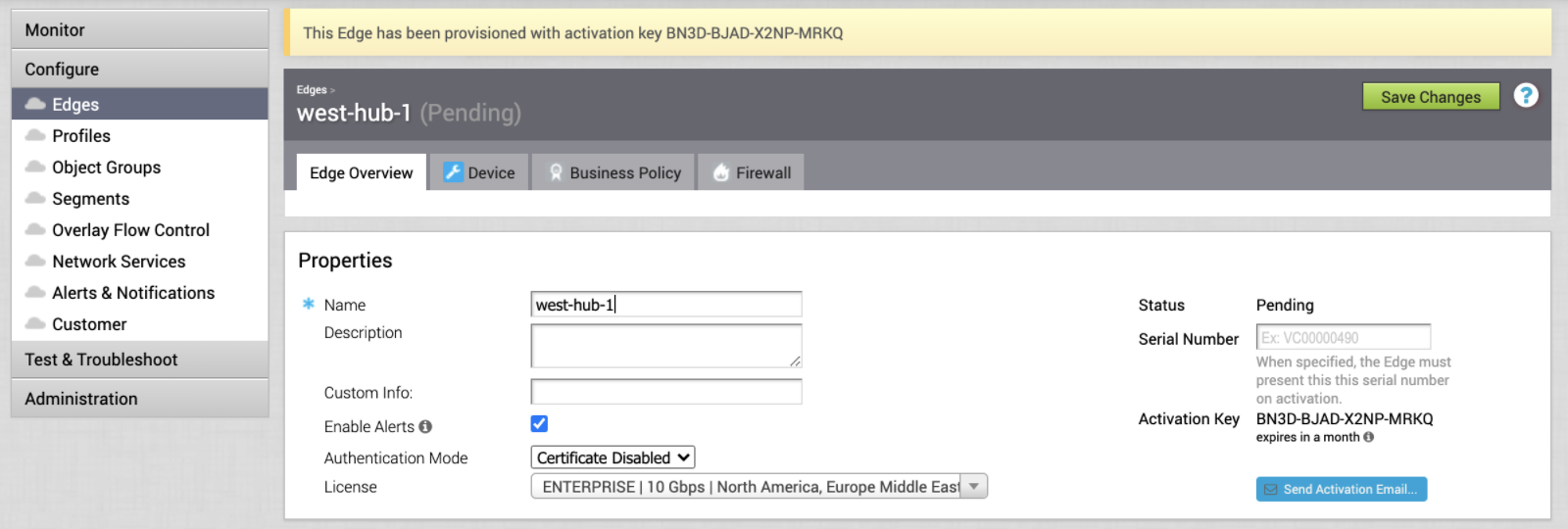
The Edge Overview tab lists an activation key. Save the activation key for use in the Megaport Portal.
-
Make any device-specific changes to the Device, Business Policy, or Firewall parameters. Or, use a device-specific profile to use predefined profile settings.
-
Click Save Changes in the upper-right corner.
The next step is to generate an SSH key for authentication.
Administrative access to MVE
You connect your MVE through a public/private SSH key pair to establish a secure connection. The public SSH key allows you to use SSH to access the MVE and perform administrative tasks, such as setting the administrative password, enabling HTTPS access, and optionally registering the MVE to your management platform.
Megaport supports the 2048-bit RSA key type.
To generate an SSH key pair (Linux/Mac OSX)
-
Enter the SSH keygen command in the terminal.
The key generator command creates an SSH key pair and adds two files to your ~/.ssh directory:
- megaport-mve-instance-1-2048 - contains the private key.
- megaport-mve-instance-1-2048.pub - contains the public key that is authorized to log in to the vendor account.
To generate an SSH key pair (Windows, using PuTTYgen)
- Open PuTTYgen.
- In the Key section, choose RSA 2048 bit and click Generate.
- Move your mouse randomly in the small screen to generate the key pairs.
- Enter a key comment to identify the key.
This is convenient when you use several SSH keys. - Enter a Key passphrase, and re-enter to confirm.
The passphrase is used to protect your key. You will be asked for it when you connect via SSH. - Click Save private key, choose a location, and click Save.
- Click Save public key, choose a location, and click Save.
You will copy and paste the contents of the public key file in the Megaport Portal later to distribute the public key to the MVE. Your private key will match the public key to grant access. Only a single private key has access to the MVE for SSH access.
Creating an MVE in the Megaport Portal
When creating an MVE, select a location that supports the MVE and is in a compatible metro area for your network design. You can connect multiple locations to an individual MVE. For more information about location details, see Planning Your Deployment.
You can deploy multiple MVEs within the same metropolitan area for redundancy or capacity reasons. As part of the MVE creation process, you will also typically create a Megaport Internet connection.
To create an MVE
- In the Megaport Portal, go to the Services page.
-
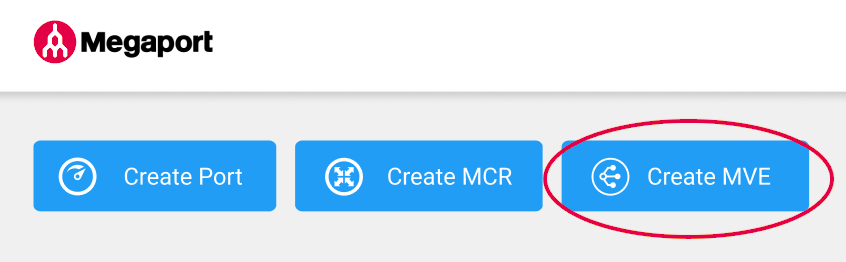
Click Create MVE.
-
Select VMware SD-WAN.
-
Select the software version.
The MVE will be configured to be compatible with that version of VMware SD-WAN.
-
Click Next.
-
Specify the MVE details:
-
Location – Select the MVE location.
Select a location geographically close to your target branch and/or on-premises locations.
The country you choose must be a market in which you have already registered.
If you haven’t registered a billing market in the location where you will deploy the MVE, follow the procedure in Enabling Billing Markets.
You can use the Search field to find the Port name, Country, Metro City, or address of your destination Port. You can also filter by diversity zone.
-
Diversity Zone – Select a diversity zone.
You can select either Red or Blue, or select Auto and have Megaport select the zone for you. The selected or allocated diversity zone will be displayed on the location details through the rest of the provisioning, and on the Summary page at the end.
For more information, see MVE Diversity. -
Size – Select a size from the list of available sizes. Available sizes are highlighted in green and labeled Available. The sizes support varying numbers of concurrent connections, and individual partner product metrics vary slightly.
Note
If the MVE size you want is not in the list, then there is not enough capacity at the selected location. You can either select another location with enough capacity or contact your Account Manager to discuss requirements.
-
Minimum Term – Select No Minimum Term, 12 Months, 24 Months, 36 Months, 48 Months, or 60 Months. Longer terms result in a lower monthly rate. 12 Months is selected by default. Take note of the information on the screen to avoid early termination fees (ETF).
Enable the Minimum Term Renewal option for services with a 12, 24, 36, 48 or 60-month term to automatically renew the contract at the same discounted price and term length at the end of the contract. If you don’t renew the contract, at the end of the term, the contract will automatically roll over to month-to-month contract for the following billing period, at the same price, without term discounts.
For more information, see MVE Pricing and Contract Terms.
-
-
Click Next.
-
Specify the VMware SD-WAN-specific settings:
-
Orchestrator Address – Enter an FQDN (Fully Qualified Domain Name) or IPv4 or IPv6 address for the Orchestrator where you created the edge device.
-
Activation Code – Enter the activation key provided to you by Orchestrator after creating the edge device.
-
SSH Key – Copy and paste the contents of your public SSH key here. You can find the public key in the megaport-mve-instance-1-2048.pub file generated earlier.
-
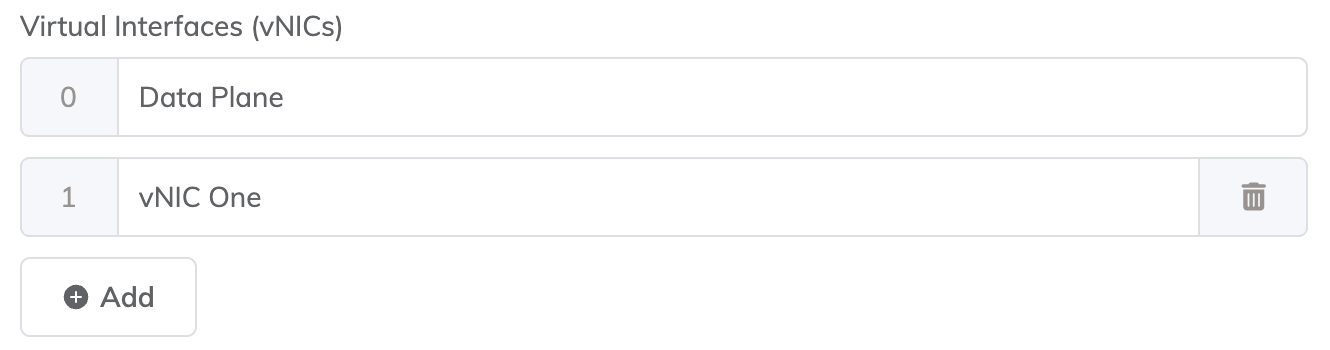
Virtual Interfaces (vNICs) – Each MVE is configured with one vNIC named Data Plane by default. To change the name, type over the name text in the box. You can also change the vNIC name later, after the MVE has been deployed.
You can add a total of five vNICs to the MVE, including the one added by default. For more information, see Types of vNIC Connections.
To add a vNIC:
-
Click + Add.

-
Enter a name for the vNIC.
Note
If you want to increase or decrease the number of vNICs on this MVE after it has been deployed, you will have to delete the entire MVE and recreate it. You cannot add or delete vNICs on a deployed MVE.
-
-
Megaport Marketplace – By default, each service is private to your enterprise and consumes services from the Megaport network for your own internal company, team, and resources. When set to private, the service is not searchable in the Megaport Marketplace, however, others can still connect to you using a service key. Megaport Marketplace visibility is controlled on your Megaport Marketplace profile. For more information about how to make your service visible to the Megaport Marketplace, see Adding services to your profile.
-
-
Click Next.
-
Specify optional settings:
-
MVE Name – Enter a name for the MVE that is easily identifiable, particularly if you plan on provisioning more than one. This name appears in the Megaport Portal.
The MVE name is auto-generated based on the location name and shown on the Summary page. You can override it by entering your own.
-
Service Level Reference (optional) – Specify a unique identifying number for your Megaport service to be used for billing purposes, such as a cost center number, unique customer ID, or purchase order number. The service level reference number appears for each service under the Product section of the invoice. You can also edit this field for an existing service.
-
Resource Tags – You can use resource tags to add your own reference metadata to a Megaport service.
To add a tag:- Click Add Tags.
- Click Add New Tag.
- Enter details into the fields:
- Key – string maximum length 128. Valid values are a-z 0-9 _ : . / \ -
- Value – string maximum length 256. Valid values are a-z A-Z 0-9 _ : . @ / + \ - (space)
- Click Save.
If you already have resource tags for that service, you can manage them by clicking Manage Tags.
Warning
Never include sensitive information in a resource tag. Sensitive information includes commands that return existing tag definitions and information that will identify a person or company.
-
-
Confirm the configuration and pricing on the Summary page.
The monthly rate is based on location and size.
-
Click Add MVE.
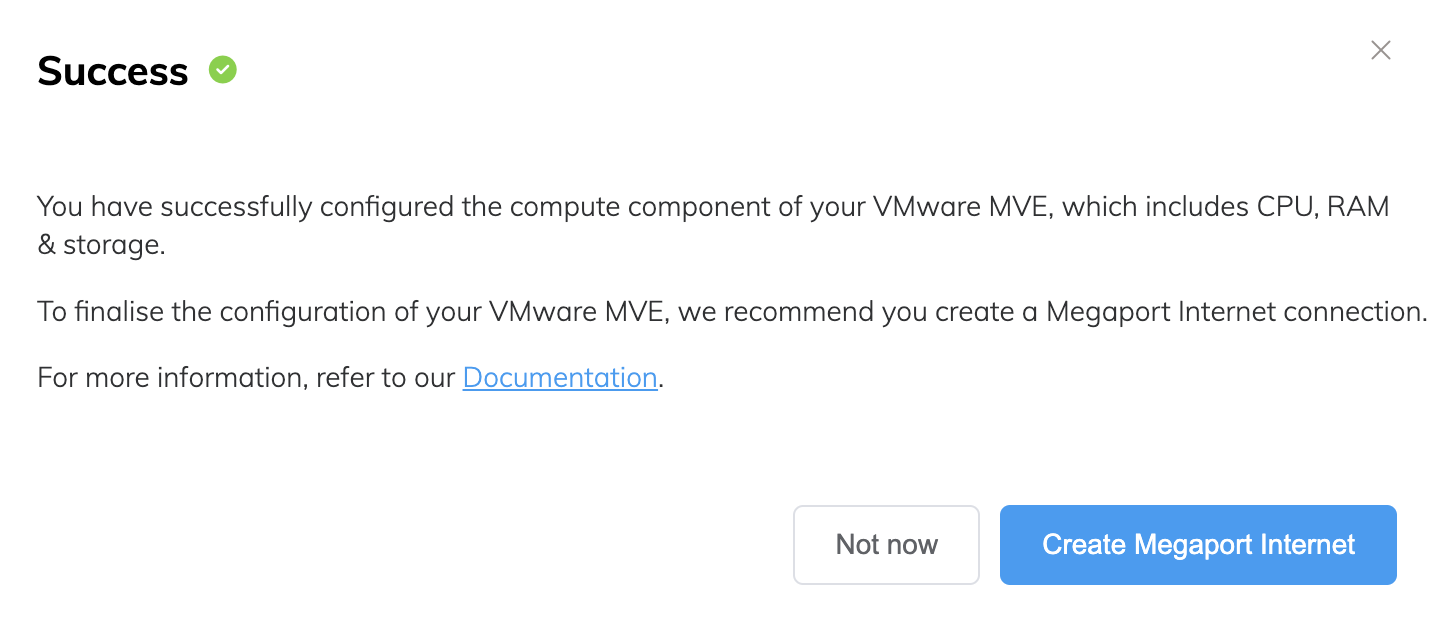
You are prompted to create a Megaport Internet connection. A Megaport Internet connection provides connectivity and allows MVE to register and communicate with VMware SD-WAN. The overlay network is created and maintained by VMware SD-WAN to provide secure tunnels from the branch locations.
To create the Megaport Internet connection
-
Click Create Megaport Internet to proceed (recommended), or click Not now to provision internet access at a later time.
Note
MVE requires connectivity to the internet onto the management plane virtual interface. You can either provision a Megaport Internet connection or configure a third-party internet connection using a private VXC. We strongly recommend that you create a Megaport Internet connection for the initial MVE startup and deployment to ensure that the MVE is provisioned and functioning correctly.
-
Select the target Port (the internet router).
The B-End of a Megaport Internet connection can be anywhere that Megaport Internet is available.
You can use the Search field to find the Port name, Country, Metro City, or address of your destination Port. You can also filter by diversity zone. -
Click Next.
-
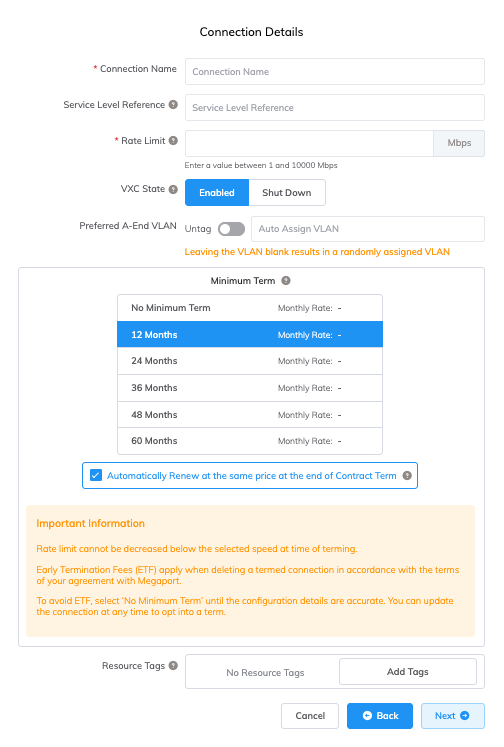
Specify the connection details:
-
Connection Name – The name of your Megaport Internet connection to be shown in the Megaport Portal.
-
Service Level Reference (optional) – Specify a unique identifying number for your Megaport service to be used for billing purposes, such as a cost center number, unique customer ID, or purchase order number. The service level reference number appears for each service under the Product section of the invoice. You can also edit this field for an existing service.
Tip
Use the same Service Level Reference numbers for the Megaport Internet connection and MVE to help identify the matching pair in your invoice.
-
Rate Limit – The speed of your connection in Mbps. The rate limit is configurable starting from 20 Mbps and can scale to several Gbps or more, in 1 Mbps increments. Available speed tiers might vary by location and service type. You can change the speed as needed after you create the Megaport Internet connection. Monthly billing details appear based on location and rate limit.
-
VXC State – Select Enabled or Shut Down to define the initial state of the connection. For more information, see Shutting Down a VXC for Failover Testing.
Note
If you select Shut Down, traffic will not flow through this service and it will behave as if it was down on the Megaport network. Billing for this service will remain active and you will still be charged for this connection.
-
A-End vNIC – Select vNIC-0 for initial management access.
-
Preferred A-End VLAN (optional) – Click Untag to remove VLAN tagging and allow first-time administrative login to the device.
-
Minimum Term – Select No Minimum Term, 12 Months, 24 Months, 36 Months, 48 Months, or 60 Months. Longer terms result in a lower monthly rate. 12 Months is selected by default. Take note of the information on the screen to avoid early termination fees (ETF).
Enable the Minimum Term Renewal option for services with a 12, 24, 36, 48 or 60-month term to automatically renew the contract at the same discounted price and term length at the end of the contract. If you don’t renew the contract, at the end of the term, the contract will automatically roll over to month-to-month contract for the following billing period, at the same price, without term discounts.
For more information, see Megaport Internet Pricing and Contract Terms and VXC, Megaport Internet, and IX Billing.
-
Resource Tags – You can use resource tags to add your own reference metadata to a Megaport service.
To add a tag:- Click Add Tags.
- Click Add New Tag.
- Enter details into the fields:
- Key – string maximum length 128. Valid values are a-z 0-9 _ : . / \ -
- Value – string maximum length 256. Valid values are a-z A-Z 0-9 _ : . @ / + \ - (space)
- Click Save.
If you already have resource tags for that service, you can manage them by clicking Manage Tags.
Warning
Never include sensitive information in a resource tag. Sensitive information includes commands that return existing tag definitions and information that will identify a person or company.
-
-
Click Next to proceed to the connection detail summary.
- Click Add VXC to order the connection.
- Click Review Order in the Configured Services area.
- If you have a promotional code, click Add Promo Code, enter it, then click Add Code.
- Click Order Now.
Ordering MVE provisions the appliance and assigns IP addresses from the Megaport SDN. The MVE provisioning takes only a few minutes to complete. The provisioning process spins up a VMware SD-WAN.
Viewing the MVE in the Megaport Portal
After creating the MVE, you can view it in the Megaport Portal on the Services page. You can also view the public IP addresses assigned.
To view an MVE in the Megaport Portal
- Go to the Services page.
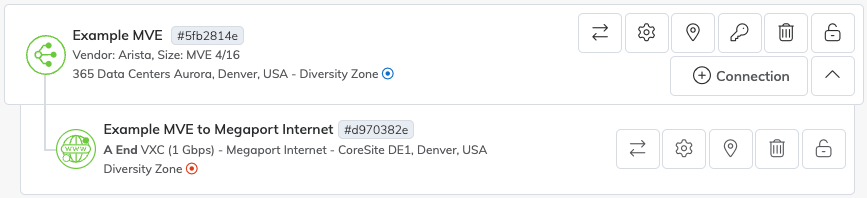
The Megaport Internet icon differs from a standard VXC icon in the Megaport Portal, as shown in the image.
For more information about the Services page, see Understanding the Services Page.
To view the public IP addresses assigned to the MVE
-
Click the gear icon
 next to the Megaport Internet connection.
The Connection Configuration screen appears. From here, you can modify any of the Megaport Internet connection details. -
Select the Details tab.
-
Locate the public IP address (IPv4 or IPv6).
These are the public IP addresses assigned to the MVE. Make a note of these addresses for use later. -
Verify that you see your new MVE device in the Megaport Portal under Services.
The Public IP Addresses (IPv4 or IPv6) are the addresses of the MVE device. By this time, the new MVE should be registered to your Orchestrator and ready for additional configuration.
Viewing the MVE in Orchestrator
After creating the MVE, you can monitor the status in Orchestrator.
To view an MVE in Orchestrator
- Log in to Orchestrator.
- Choose Monitor > Network Overview.
-
Click the MVE edge device from the list.
The Link Status and Bandwidth Usage metrics are displayed.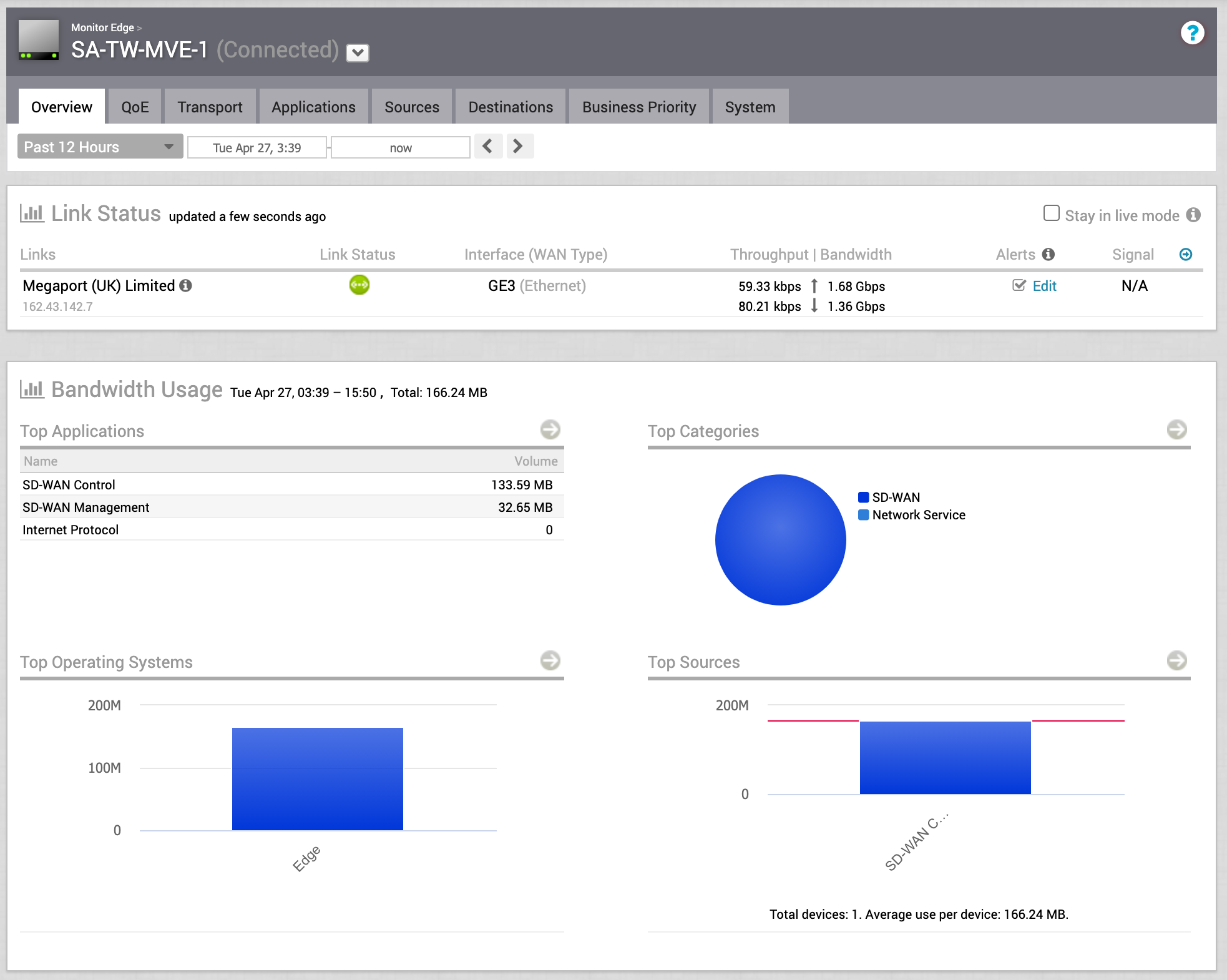
Validating your connection
- In Orchestrator under Test & Troubleshoot > Remote Diagnostics, select the MVE and click Run for Troubleshoot BGP - Show BGP Summary to verify the BGP session and ensure the edge device is up.
You can also check connectivity and BGP status from the CLI of the edge device. For more information, see Reviewing MVE Connection Settings in VMware SD-WAN.
Next steps
Once the MVE is provisioned with an Active status, the next step is to connect a VXC to a Cloud Service Provider (CSP), a local port, or a third-party network. You can optionally connect a physical Port to the MVE through a private VXC or connect to a service provider in the Megaport Marketplace.
For more information, see Creating a VXC.